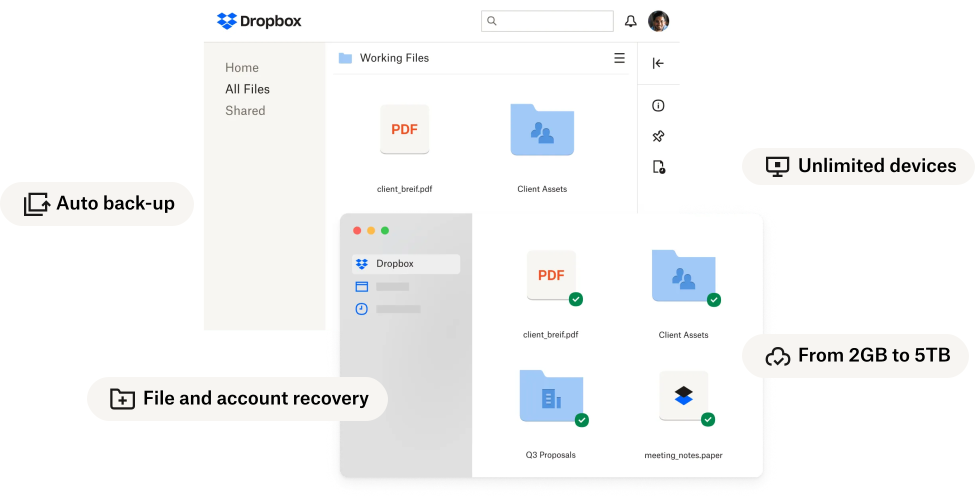

Manage Mac and PC backup—automatically
When you turn on computer backup, files on your PC or Mac are continuously backed up to the cloud. Any changes made in synced folders are automatically updated in your Dropbox account and on your hard drive.


With terabytes of cloud storage options, you’ll have all the space you need to store your content - photos, personal files, and even passwords - in one safe place.

Easily prepare, edit PDFs, send and eSign your most important contracts - all in one place.

Host live virtual review for your video, audio, PDF, or image projects with Dropbox Replay.

Your files are always encrypted by default. Backup, recovery and remote wipe features will ensure your content is protected at all times, on any device.


When you turn on computer backup, files on your PC or Mac are continuously backed up to the cloud. Any changes made in synced folders are automatically updated in your Dropbox account and on your hard drive.


"The interface on both Android and iPhone is incredibly user-friendly. It's the perfect option for submitting pictures and documents with ease."
"I like the quick link sharing feature through gmail and other email services. I send dropbox links for photos and videos all the time after finishing a wedding or other gigs for clients."
"I highly value Dropbox Replay. As a video production manager, this tool allows me to easily give notes to my editors and collaborate on active projects. No need for a third party tool elsewhere."
"Dropbox performs reliably, with minimal downtime and efficient file syncing. The speed of uploads and downloads is impressive, making it suitable for handling large files."
With files safely backed up to your Dropbox account, you’re protected from computer loss, theft, and hard drive crashes. Your content is secure in the cloud, no matter what happens to your computer.

With computer backup, files saved in folders like Desktop, Documents, and Downloads are automatically and continuously synced to the cloud, so you don’t need to manually select and drag files from Finder / File Explorer into your Dropbox account.
After you set up computer backup, you’ll see a new Mac or PC backup in your Dropbox account.
Basic, Plus, Family, Standard, and Advanced users: You can set up computer backup through Preferences in the desktop app.
Enterprise users: If your admin has enabled computer backup for your team, you can set up computer backup through Preferences in the desktop app.
For step-by-step instructions, visit the help center.
Enterprise admins: Go to your admin console and enable computer backup for your team. Once enabled, team members can set up computer backup on their own devices.
When you move, add, or delete files within synced folders, your files stay safe and up to date automatically.
Computer backups run continuously in the background and are synced to the cloud in real time.
Dropbox makes cloud data security its top priority—we use multiple layers of protection across a distributed, reliable cloud infrastructure.
Yes. Download Dropbox to get the most out of your account, including computer backup. Use the desktop app to keep all your content together in one place: files, folders, and now backups of your Mac or PC.