Keeping construction change orders moving starts with keeping the paperwork together. Make each proposed change clear with the relevant drawings, quotes, and schedule information—then send the agreed document to the people who need to sign it. When someone needs to check a price or understand a revision, they’ll have the context to move the conversation forward.
Think of each change order as a project folder with a story to tell about what’s changing, what it means for cost and timing, and what was agreed. With Dropbox cloud storage, you can keep the supporting files together and share them for review, then use Dropbox Sign to request signatures.
This guide walks you through that process, with practical ways to keep the record easy to follow long after the work is finished. Learn more about how Dropbox for construction can help keep your project documents connected or choose a plan to get started today.

What is a change order in construction?
A construction change order is a written agreement that records a change to a construction contract. It describes the change in work and any adjustment to the contract price or completion time. That might mean:
- Adding work
- Reducing scope
- Substituting a material
A change doesn’t always increase the budget—it can also record a credit or leave the price unchanged. The required approvals and signatures depend on your contract.
For example, your client might request a different lobby floor finish. Before that request becomes an agreed change, you need to bring together things like:
- Revised specification
- Supplier pricing
- Any effect on installation dates
The change order records the agreement, while those supporting files explain how you reached it.
What’s a change order vs. a construction change directive?
These documents serve different purposes. The main distinction is:
Document | What it does | What your record needs to show |
|---|---|---|
Change order | Records an agreed change to the work and any cost or time adjustment | The agreed terms, referenced attachments, and required signatures |
Construction change directive | Directs changed work before full agreement on cost, time, or both | The instruction, supporting records, and subsequent determination or agreement |
A directive has its own authorization requirements. Follow your governing contract when deciding which document to use, who issues it, and whether work should proceed.
For document organization, the practical point is to make the status obvious. Someone opening a folder should be able to distinguish a proposal awaiting review from an executed change order.
What should a construction change order include?
Use the form and process required by your contract. As a practical document check, make sure the package clearly identifies:
- The project and change—project name, contract reference, change order number, and date
- The scope—what is changing, including the affected location or work package
- The cost adjustment—the agreed increase, decrease, or confirmation of no change
- The time adjustment—the agreed schedule effect, including no adjustment where applicable
- The supporting documents—relevant drawings, specifications, proposals, and other attachments, identified by date and revision
- The required signatures—the parties and authorized representatives your contract requires
Write a description that lists the replacement finish, the area affected, and the date of purchase. This gives the next reviewer something to work with.
Why change order paperwork gets held up
A clear proposal can still stall when the information needed to review it is scattered. You may recognize a few of these situations:
- The subcontractor’s revised quote is buried in an email thread
- The owner is reviewing an earlier drawing
- A cost adjustment has been updated, but the agreement still references the old attachment
- Nobody knows whether the document is awaiting technical review or a signature
- The signed agreement has been saved separately from the files that explain it
The time spent finding that information adds up. In a joint PlanGrid and FMI survey of construction leaders, respondents reported spending an average of 5.5 hours a week searching for project data—including revised drawings and material information.
Keeping the package together gives your reviewers a clearer starting point and means fewer loose ends to chase.
How to organize construction change orders with Dropbox
You can build this approach around your existing project procedures. Dropbox provides a shared home for the files, while your appointed reviewers and signers stay responsible for the decisions.
Let’s follow that lobby flooring change from the initial request through to the completed record:
1. Bring the change and supporting files together
Create a shared folder for the proposed change within your project’s agreed folder structure. Use a consistent reference, such as ‘CO-014 – Lobby flooring’, across the folder, proposal, and tracking log. Keep the following relevant material together:
- The original request and written clarification
- Affected drawings and specifications
- Supplier and subcontractor quotations
- Photos showing existing conditions, where relevant
- Cost and schedule supporting information
If the flooring subcontractor needs to send an updated quote, a simple file request in Dropbox lets you collect it into a folder you choose. They can upload without a Dropbox account, so you can gather the missing file without adding another hurdle.
Check access before sharing the package. A supplier submitting pricing may only need an upload request, while your internal reviewer needs access to the broader proposal.
2. Keep the review focused on the current documents
Once the package is assembled, share the relevant Dropbox files or folder with the people reviewing it. Choose view or edit file permissions according to their role.
For example, your client may need to review the proposed finish and cost without changing the source documents. Your project coordinator may need edit access to maintain the package.
Dropbox supports view and edit permissions, and file comments let people keep feedback beside the document being discussed. Here’s how to make the review easier to follow:
- Identify revisions clearly: Include the document reference, revision, and date where appropriate.
- Give reviewers a specific question: Ask them to confirm the finish specification or check the installation allowance.
- Record decisions in the agreed project process: File comments can support discussion, but formal approval still needs to follow your contract.
- Keep earlier drafts distinguishable: Use a consistent approach so an outdated proposal isn’t mistaken for the version ready to sign.
Dropbox version history and file recovery features can help you review earlier file versions and restore them when needed. It keeps your revision process moving smoothly—just make sure your file names and status records clearly show which version everyone has approved.
For the lobby change, that means the client can review the replacement finish while your coordinator checks that the quote covers the same material—and both discussions lead back to an identifiable package.
3. Prepare the agreed version for signature
Before sending the document, check that the agreement and its attachments tell the same story.
If the client selected a different finish during review, does the attached quotation reflect that choice? If installation takes longer, does the agreement record the agreed time adjustment?
A short final checklist that includes the following helps:
- Confirm the scope, cost, and time wording reflects the agreement reached.
- List the supporting attachments with their dates and revisions.
- Confirm the required signers and their details.
- Clearly identify the version being sent for signature.
Think of this as packing a handover folder. Whoever opens it should have everything needed to understand what they’re being asked to sign.
4. Send for signature and follow progress with Dropbox Sign
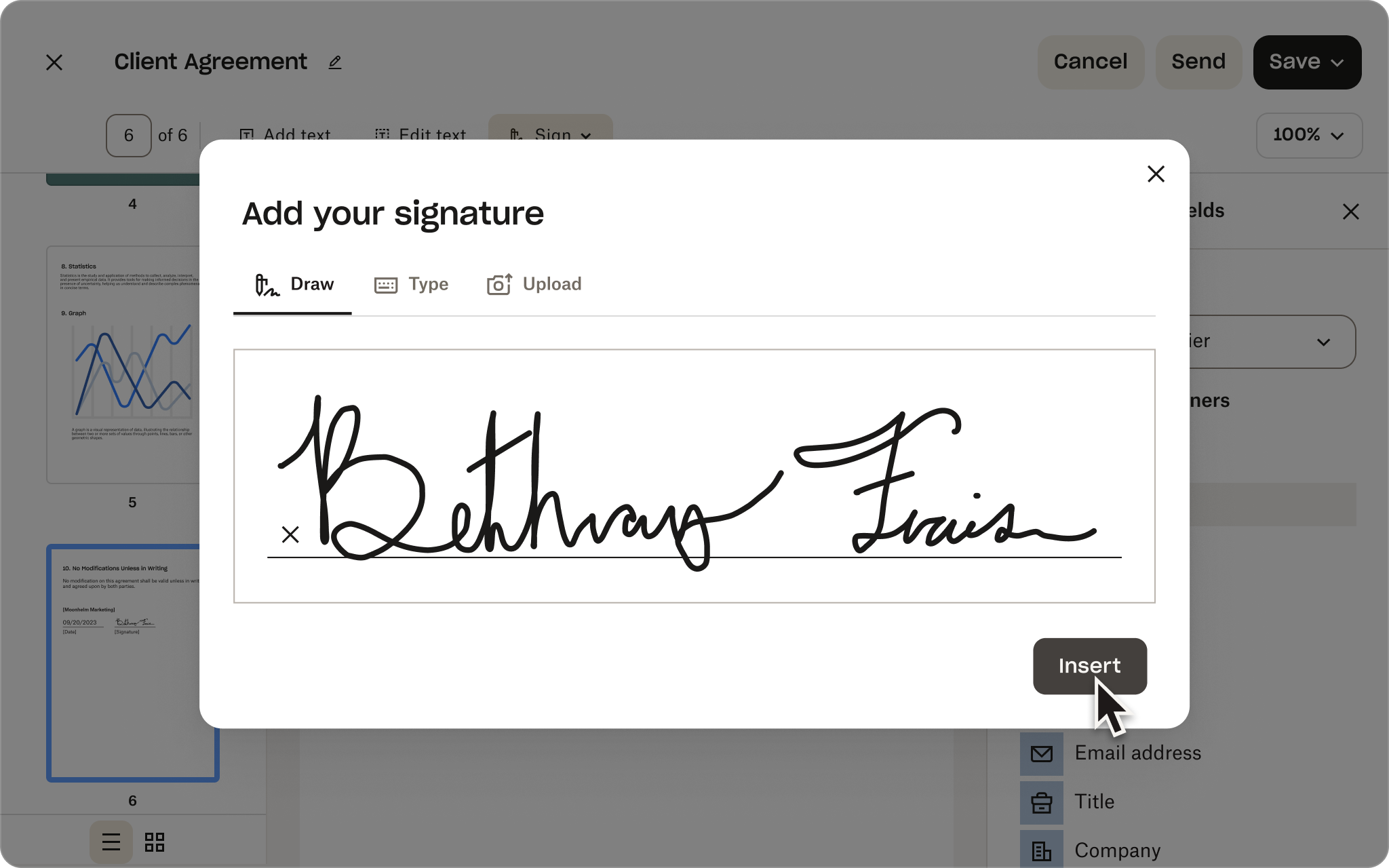
With the agreed package ready, use Dropbox Sign to request the required signatures.
Instead of repeatedly asking whether someone has signed, you can track document status and use reminders to follow up. Mobile-friendly signing gives recipients a way to review and sign when they’re away from their desks.
For recurring documents, reusable templates can reduce repeated preparation by retaining standard fields and signer roles. You’ll still need to check the project-specific wording, attachments, and recipients each time.
If your project already uses Procore, the Dropbox Sign integration supports sending construction documents, including change orders, for signature from that workflow. Choose the route that fits your established process.
5. Keep the signed agreement with the project record
Once signing is complete, keep the executed agreement and its audit trail accessible alongside the supporting files.
Dropbox Sign audit trails record signing transaction information. They support the signature record, but keep the drawings, pricing, and written decisions too—so you retain the context behind the agreement.
With the Dropbox integration activated, Dropbox Sign can sync sent and completed documents into Dropbox. Confirm where those documents are saved, then organize or reference the completed agreement within your project record.
Update your change order log with the completion date and a link to the executed document. Keep superseded proposals clearly separate from the signed record.
Later, if someone asks why the lobby finish changed or which price was accepted, you can open one linked set of records instead of looking through many emails.
Keep the next change order easier to follow with Dropbox
You don’t need to reinvent your project process to make the paperwork easier to manage. Start with the next proposed change. Make sure to:
- Give it a consistent reference
- Gather the supporting files
- Make the review version clear
- Follow the required approval and signature process
- Keep the completed agreement connected to its context
With Dropbox, you can organize and share the project files that support those decisions in your cloud storage—then use Dropbox Sign to keep signatures moving.
Explore Dropbox for construction to find out more about how it can optimize all kinds of construction workflows and choose a plan to get started
Frequently asked questions
Yes, where your contract permits it. Start with any required form, then make sure it captures the project-specific change and identifies the supporting documents. A reusable Dropbox Sign template can help with repeatable field placement, while you review the wording and attachments for each request.
Maintain a change order log with a unique reference, description, responsible person, current status, and relevant dates for each item. Link each entry to its supporting folder in your cloud storage and, once completed, its signed agreement. Keep proposal review status separate from signature status so you know what needs attention next.
Use the same change order reference across the agreement, folder, and log. Keep dated supporting attachments with the executed record, and clearly distinguish earlier drafts. If you activate the Dropbox Sign integration with Dropbox, check the sync destination and connect those saved documents to the appropriate project folder.


