Table of contents
- What is cloud photo storage?
- How cloud Photos storage works—back up vs. sync vs. sharing
- Cloud photo storage vs. local storage—what you gain and what you lose
- What’s the best online Photos storage for professionals?
- How Dropbox makes cloud Photos storage more effective
- Choose the right cloud photo storage service
Cloud Photos storage is a way to save your Photos online. By using it, you can access them from many devices, share them more easily, and protect them if your phone or camera is lost or stolen.
But not all cloud Photos storage works the same way. Some services are built like a Photo Library—think automatic galleries, albums and so on. Others are built like cloud storage for files—giving you organised folders, storage for original files and flexible sharing features.
If you’re trying to choose the right option, this guide will help you decide based on quality, security, back up needs, and how you use Photos day-to-day. When you’re ready to put it into practice, try Dropbox for secure Photos storage and explore the full range of Dropbox cloud storage features.

What is cloud photo storage?
Cloud Photos storage means your Photos and video are saved to a cloud service (instead of only living on your phone, camera, or computer). It’s the difference between having Photos on one device and having them safe, accessible, and shareable wherever you are.
Depending on the service, cloud photo storage can help you:
- Back up photos automatically
- Free up space on your phone
- View Photos on other devices, like a phone, tablet, computer or web browser
- Share albums or files without having to rely on giant attachments
- Keep Photos organised over time
The key is choosing the type of cloud Photos storage that fits your needs. Some tools are built like a Photo Library with galleries, smart albums and memory features. Others are built as cloud storage for original Photos with control over how you share files and organise folders.
Dropbox fits into that second category—it’s cloud storage that can also make Photos easier to back up, browse, and share. If you care about keeping original files organised, and sharing them cleanly with clients when you need to, that flexibility is the whole point.
How cloud Photos storage works—back up vs. sync vs. sharing
Cloud Photos storage can mean many different things in practice. Most frustration comes from thinking you’re using one mode when you’re actually using another.
If you know whether your setup is backing up, syncing, or sharing (or all three), you’ll avoid classic surprises like:
- Photos disappearing everywhere
- Photo quality changing
- File links that don’t behave the way you expected
Here are the three core functions and how they interact with your photos:
Photo backup
Backing up means copying your photos somewhere safer than your device. Good file backup setups are usually:
- Automatic—so you don’t forget
- Redundant—so one failure doesn’t wipe everything
Photo sync
File syncing means your Photo Library stays consistent across devices.
That convenience has a trade-off. In many sync-based systems, changes you make on one device show up everywhere. For example, Apple explains that iCloud Photos keeps your library up to date across devices, and edits or deletions made on one device reflect across the others.
Photos sharing
File sharing can mean the following for your Photos:
- Shared folders—serving as collaborative photo collections to edit, review or enhance
- Shared links—to a specific photo or collection, where anyone with the link can view
- Inviting specific people—for final delivery on projects, giving you tighter access control
Different sharing methods can also affect quality and metadata—but we’ll touch on that later.
Overall, backup is about safety, sync is about consistency, and sharing is about access. Once you know what you want your photo storage to do, it’s easier to choose the right setup and trust what will happen when you delete, edit or share something.
Cloud photo storage vs. local storage—what you gain and what you lose
Storing Photos on your camera, phone, or computer may seem convenient. However, devices can go missing, memory cards can be misplaced, or you might just notice the picture you want is on a device that’s out of reach.
Cloud Photos storage earns its keep when you want your precious photographs to be safer, easier to access, and simpler to share. Cloud Photos storage is usually better than local if you care about:
- Off-device protection, so a lost device doesn’t automatically mean lost Photos
- Easier access across devices
- Simpler (but still secure) sharing with clients, family or friends
However, even with cloud storage, there are a couple of things to watch out for, such as:
- Ongoing storage limits and plan choices
- Upload time for large libraries, which may affect large design or creative teams
- Security depends on both the provider and how you secure your account
For many, the ideal approach combines both cloud and local storage. Cloud options offer flexibility and reliability, while local storage ensures you always have a copy that’s yours to manage. Using both together helps ensure your files are right where you expect them—whenever you need them.
What’s the best online Photos storage for professionals?
When you’re running a photography business or doing any kind of design, marketing, or content creation—the best option is a setup that protects the work, keeps photo projects organised, and makes it painless to deliver finals without turning your folder structure into a public gallery.
For professionals, the best cloud photo storage usually means:
- You can keep the originals
- You can stay organised by client or project
- You can share work without muddying versions
- Clients can download what they need
Dropbox is designed for teams who need to share original files with ease. It lets you organise your work in folders, set flexible sharing options, and give clients the ability to preview content online or access full-resolution downloads when they’re ready.
How Dropbox makes cloud Photos storage more effective
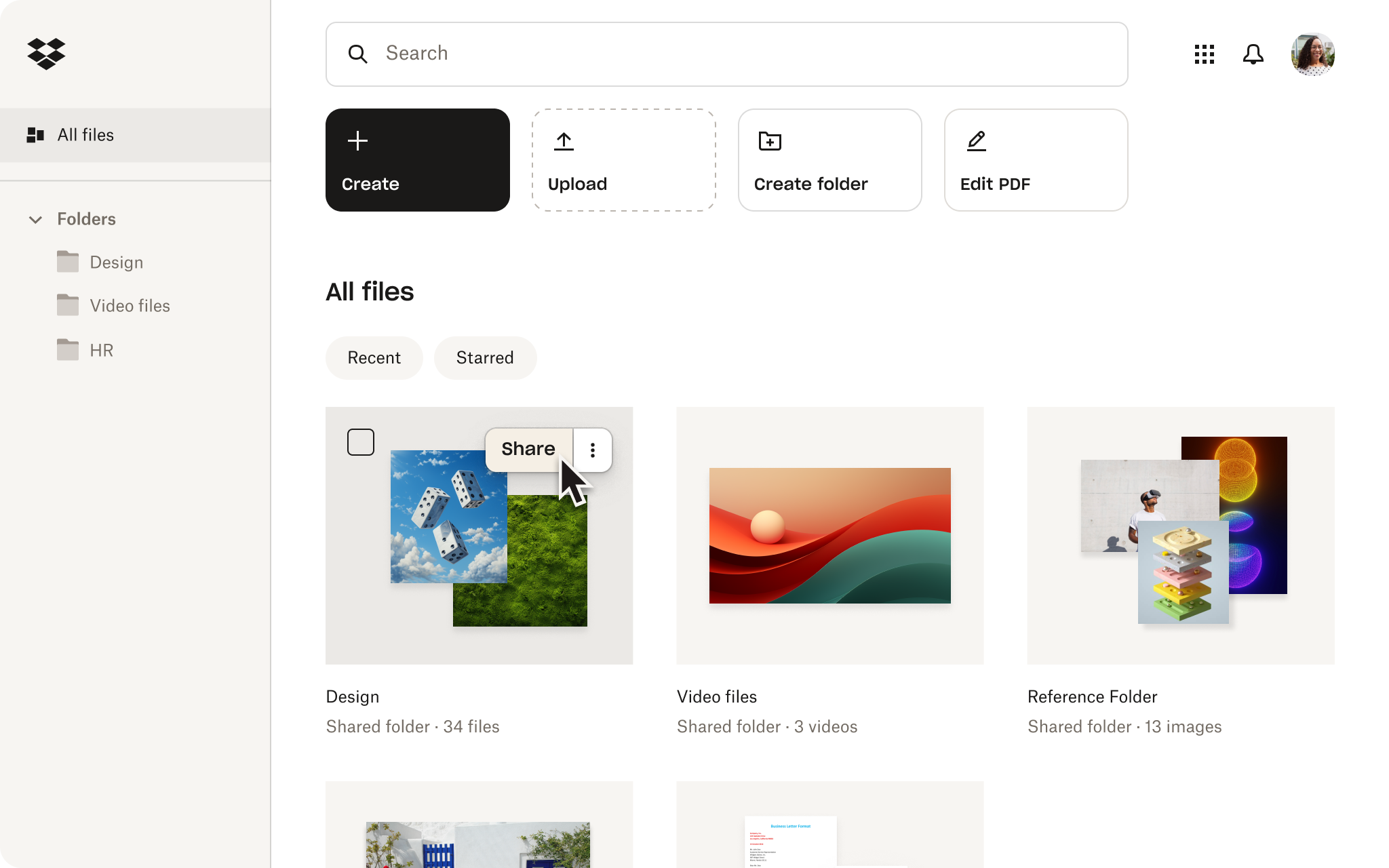
Cloud photo storage preserves every detail, keeps your collection protected, and makes it simple to share. Dropbox gives you full control, treating your photos like important files that are:
- Organised in folders
- Easy to find
- Simple to share with control
The best photo storage prevents you from getting boxed into a gallery-only experience that stops you from making progress on a project. Here are a few ways Dropbox works for photographers:
1. Keep photo quality predictable
Many services handle photos differently from other files, which can affect how images are saved and shared. But with Dropbox, you can keep everything high-quality and completely secure.
Here’s how other cloud Photos storage options can let you down:
- Some services let you choose original vs. compressed: Google Photos, for example, has settings for original quality that keeps Photos and video at the same resolution, but storage saver settings store them at reduced quality—compressing and often resizing Photos.
- Some services keep originals in the cloud but optimise what’s on your device: Apple has an option to optimise storage on your device, so full-resolution originals live in iCloud while your phone keeps smaller, space-saving versions. Not ideal when you need a quick full-res shot.
- Sharing can adjust file details: Apple uses shared albums, where you upload a copy. However, the copy may not include the same information as the original—so the metadata can be different. This can leave you struggling when you need details about how or when a photo was taken.
When you upload photos to Dropbox, you’re storing the files themselves—so you can organise originals in folders and share them via link without relying on unpredictable album behaviour.
2. Make backup actually feel like backup
For Family Photos especially, the safest back up setup is the one you’ll stick with. A simple ‘3-2-1’ mindset works well, which means 3 copies, 2 places, 1 offsite.
Here’s how Dropbox helps make photo back up seamless:
- Turn on automatic uploads: You can do this from your camera or phone so new photos are protected without effort. Camera uploads provide an easy way to ensure all photos get the same treatment, which provides greater peace of mind during busy projects.
- Keep a second copy somewhere else: You can easily move files from your cloud storage to another device—like a computer or external drive. Dropbox provides fast upload and download speeds, which makes moving large folders much more convenient.
- Maintain an offsite copy in the cloud: When you keep your files in Dropbox, your content stays safe and accessible. Even if something happens, your files remain where you need them. If you want extra security, you’re free to back up your files to any storage solution you choose.
Dropbox gives you extra protection by storing your files separately from your device. This is ideal if you want an automatic back up through Camera Upload that keeps your content easy to access.
3. Add strong security
While no tool can completely eliminate online threats, you can significantly strengthen your defences by combining security features with a few smart account practices.
Here’s how Dropbox security means you can use Photos with complete confidence:
- Strong security standards: Dropbox uses SSL/TLS in transit, AES-256 at rest, and supports multi-factor authentication, with advanced options like advanced key management and end-to-end encryption available for more sensitive needs.
- Simple habit-building features: You can quickly cover your security basics with Dropbox. Turn on multi-factor authentication, create a unique password, check which devices are signed in and choose secure links whenever you share files. It’s all simple to set up, so you can stay safe.
With your files and account protected, you’re free to concentrate on your photo project. Dropbox is a fantastic option if you want to keep your original images intact, organise your collection just the way you want and share photos without losing quality along the way.
Choose the right cloud photo storage service
Picking the right service comes down to one question: whether you want a photo library or cloud storage for the real files. Take a moment to review the key features before making your choice.
Look for a tool that saves files in original quality and gives you control over compression. If you want cloud photo storage that keeps originals intact, organised, and easy to share—try Dropbox.
Frequently asked questions
Dropbox keeps original file and image quality. However, some services store originals by default, while others offer original and compressed options. Google Photos, for example, has an original quality option (no quality change) and a storage saver option (slightly reduced quality with compression/resizing in some cases)—make sure to check your settings to avoid quality issues.
Security depends on the provider and your account settings. Look for encryption in transit and at rest, and always enable multi-factor authentication. Dropbox security uses SSL/TLS in transit, AES-256 at rest, and two-step verification—for strong account security options that don’t disrupt your workflow.
Try the simple 3-2-1 approach, which means you’ll keep multiple copies. Keep at least one copy off your phone or camera, and keep one offsite in the cloud. If you use iCloud Photos, remember your Photos aren’t duplicated in your iCloud backup—so keep backup copies of your entire library.
It depends on your needs. Common choices are iCloud Photos (for a simple Apple ecosystem sync), Google Photos (for cross-platform backup with shareable albums and links), and Dropbox with Camera Uploads turned on (for automatic uploads into Dropbox with simple organisation).


