Table of contents
- Що таке хмарне сховище для фотографій?
- Як працює зберігання фотографій у хмарі: резервне копіювання, синхронізація та надання доступу
- Хмарне сховище фотографій проти сховища на пристрої — що ви отримуєте та що втрачаєте
- Яке онлайн-сховище фотографій є найкращим для професіоналів?
- Як Dropbox робить хмарне сховище фотографій ефективнішим
- Виберіть відповідну службу хмарного сховища для фотографій
Хмарне сховище фотографій — це спосіб зберігати ваші фотографії онлайн. Використовуючи його, ви можете отримувати до них доступ з багатьох пристроїв, легше ними поділитися та захистити їх, якщо ваш телефон або фотоапарат буде втрачено або викрадено.
Але не всі хмарні сховища фотографій працюють однаково. Деякі служби побудовані як бібліотека фотографій — з автоматичними галереями, альбомами тощо. Інші створені як хмарне сховище для файлів — вони пропонують упорядковані папки, зберігання оригінальних файлів і гнучкі функції спільного доступу.
Якщо ви намагаєтеся обрати правильний варіант, цей посібник допоможе вам визначитися з огляду на якість, безпеку, потреби у створенні резервних копій і те, як ви користуєтеся фотографіями щодня. Коли ви будете готові застосувати це на практиці, спробуйте Dropbox для безпечного зберігання фотографій і ознайомтеся з усім спектром функцій хмарного сховища Dropbox.

Що таке хмарне сховище для фотографій?
Хмарне сховище фотографій означає, що ваші фотографії та відеозаписи зберігаються в хмарній службі (а не лише на телефоні, камері чи комп'ютері). Це різниця між зберіганням фотографій на одному пристрої та їх безпечним зберіганням із можливістю доступу й обміну, де б ви не були.
Залежно від служби, хмарне сховище фотографій може допомогти вам:
- Автоматичне резервне копіювання фотографій
- Звільніть місце телефоні
- Переглядайте фотографії на інших пристроях, як-от телефон, планшет, комп'ютер чи веббраузер
- Діліться альбомами або файлами, не покладаючись на громіздкі вкладення
- Підтримуйте організованість фотографій із часом
Основне — вибрати тип хмарного сховища фотографій, який відповідає вашим потребам. Деякі інструменти створені як бібліотека фотографій із галереями, розумними альбомами та функціями спогадів. Інші створені як хмарне сховище для оригіналів фотографій із контролем над тим, як ви ділитеся файлами та впорядковуєте папки.
Dropbox належить до другої категорії — це хмарне сховище, яке також спрощує резервне копіювання, перегляд і надсилання фотографій. Якщо для вас важливо тримати оригінальні файли впорядкованими та за потреби акуратно ділитися ними з клієнтами, саме така гнучкість і є головною перевагою.
Як працює зберігання фотографій у хмарі: резервне копіювання, синхронізація та надання доступу
На практиці хмарне сховище фотографій може означати багато різних речей. Найбільше труднощів виникає тоді, коли ви думаєте, що використовуєте один режим, а насправді використовуєте інший.
Якщо ви знаєте, що саме виконує ваше налаштування — резервне копіювання, синхронізацію чи обмін (або все одразу), — ви уникнете типових несподіванок, як-от:
- Фотографії зникають усюди
- Зміна якості фотографій
- Посилання на файли, які працюють не так, як ви очікували
Ось три основні функції та те, як вони взаємодіють із вашими фотографіями:
Резервне копіювання фотографій
Резервне копіювання означає копіювання ваших фотографій у безпечніше місце, ніж ваш пристрій. Оптимальні налаштування резервного копіювання файлів зазвичай:
- Автоматично— щоб ви не забули
- Резервування— щоб один збій не стер усе
Синхронізація фотографій
Синхронізація файлів забезпечує узгодженість вашої бібліотеки фотографій на всіх пристроях.
Ця зручність має свій компроміс. У багатьох системах на основі синхронізації зміни, внесені на одному пристрої, відображаються всюди. Наприклад, Apple пояснює, що Фотографії iCloud підтримує вашу бібліотеку в актуальному стані на всіх пристроях, а редагування чи видалення, виконані на одному пристрої, відображаються на інших.
Надання спільного доступу до фотографій
Надання спільного доступу до файлів може означати для ваших фотографій наступне:
- Спільні папки— слугують колективними колекціями фотографій для редагувати, перегляду чи покращення
- Посилання на спільний доступ— до окремої фотографії чи колекції, де будь-хто з посиланням може переглядати вміст
- Запрошення конкретних людей— для остаточної передачі проєктів, що забезпечує суворіший контроль доступу
Різні методи надання доступу також можуть впливати на якість і метадані, але про це ми розповімо пізніше.
Загалом, резервне копіювання забезпечує безпеку, синхронізація — узгодженість, а надання доступу — доступ до даних. Коли ви знаєте, що саме має робити ваше сховище фотографій, легше обрати правильні налаштування та бути впевненими в тому, що станеться, коли ви видаляєте, редагуєте чи ділитеся чимось.
Хмарне сховище фотографій проти сховища на пристрої — що ви отримуєте та що втрачаєте
Зберігання фотографій на камері, телефоні чи комп'ютері може здаватися зручним. Однак пристрої можуть загубитися, карти пам'яті можуть кудись подітися, або ж потрібне зображення може виявитися на пристрої, до якого немає доступу.
Хмарне сховище фотографій отримує свою віддачу, коли ви хочете, щоб ваші цінні фотографії були безпечнішими, легшими для доступу та простішими для того, щоб поділитися. Хмарне сховище фотографій зазвичай краще, ніж зберігання на пристрої, якщо для вас важливо:
- Захист поза пристроєм, тож втрата пристрою не означає автоматично втрату фотографій
- Простіший доступ з усіх пристроїв
- Простіший і безпечніший спільний доступ з клієнтами, родиною або друзями
Однак навіть із хмарним сховищем є кілька моментів, на які варто звернути увагу, зокрема:
- Поточні обмеження сховища та вибір тарифних планів
- Час передавання для великих бібліотек, що може впливати на великі дизайнерські чи творчі команди
- Безпека залежить як від постачальника, так і від того, як ви захищаєте свою обліковку
Для багатьох ідеальним є поєднання хмарного сховища та сховища на пристрої. Хмарні варіанти забезпечують гнучкість і надійність, а сховище на пристрої гарантує, що у вас завжди є власна копія, якою ви керуєте. Використання обох варіантів разом допомагає гарантувати, що ваші файли завжди там, де ви очікуєте, — коли б вони вам не знадобилися.
Яке онлайн-сховище фотографій є найкращим для професіоналів?
Якщо ви займаєтеся фотобізнесом, дизайном, маркетингом або створенням контенту — найкращий варіант — це система, яка захищає роботу, забезпечує організованість фотопроєктів і дозволяє безболісно передавати фінальні файли, не перетворюючи структуру ваших папок на загальнодоступну галерею.
Для професіоналів найкраще хмарне сховище фотографій зазвичай означає:
- Ви можете зберегти оригінали
- Ви можете впорядковувати вміст за клієнтом або проєктом
- Ви можете ділитися роботою, не плутаючись у версіях
- Програми-клієнти можуть завантажувати те, що їм потрібно
Dropbox створено для команд, яким потрібно легко поділитися оригінальними файлами. Вона дає змогу організовувати Вашу роботу в папках, налаштовувати гнучкі параметри спільного доступу та надавати програмам-клієнтам можливість переглядати вміст онлайн або завантажувати його в повній роздільній здатності, коли вони будуть готові.
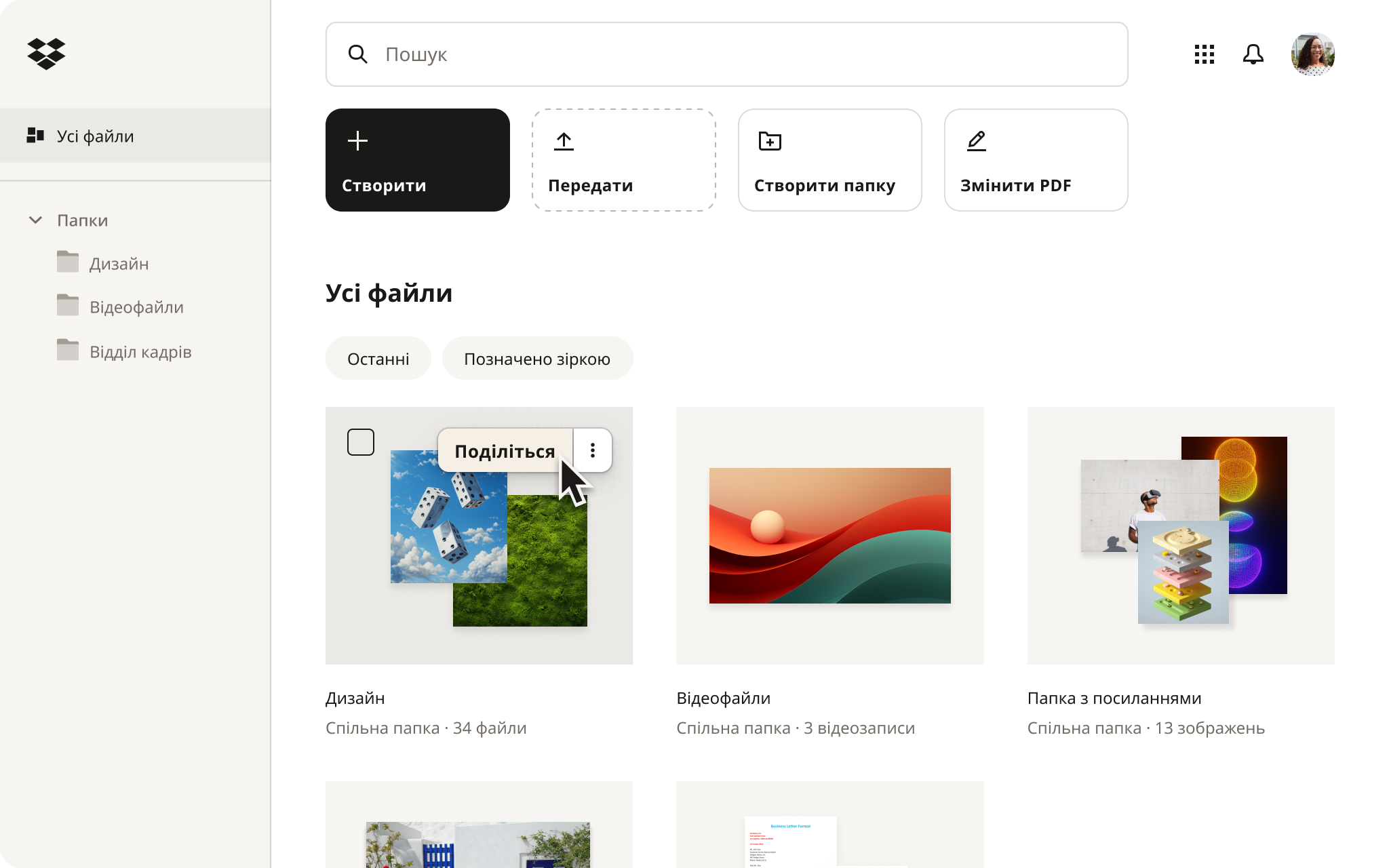
Як Dropbox робить хмарне сховище фотографій ефективнішим
Хмарне сховище для фотографій зберігає кожну деталь, захищає вашу колекцію та дозволяє легко ділитися нею. Dropbox надає Вам повний контроль, працюючи з Вашими фотографіями як із важливими файлами, які є:
- Упорядковані в папках
- Легко знайти
- Легко ділитися з контролем доступу
Найкраще сховище для фотографій не обмежує вас лише переглядом галереї, що заважає просуватися в роботі над проєктом. Ось декілька способів, за допомогою яких Dropbox стане в пригоді фотографам:
1. Зберігайте передбачувану якість фотографій
Багато служб обробляють фотографії інакше, ніж інші файли, що може впливати на те, як зображення зберігаються та надаються в спільний доступ. Але з Dropbox ви можете зберігати всі файли у високій якості та в повній безпеці.
Ось як інші варіанти хмарного сховища для фотографій можуть вас підвести:
- Деякі служби дають змогу обирати між оригінальною та стисненою якістю: наприклад, у Google Photos є параметри оригінальної якості, які зберігають фотографії та відеозаписи в тій самій роздільній здатності, а параметри економії місця зберігають їх у зниженій якості — стискаючи та часто змінюючи розмір фотографій.
- Деякі служби зберігають оригінали у хмарі, але оптимізують те, що зберігається на вашому пристрої: Apple пропонує можливість оптимізувати сховище на вашому пристрої, тому оригінали в повній роздільній здатності зберігаються в iCloud, а на телефоні залишаються менші версії, що заощаджують місце. Не найкращий варіант, коли потрібен швидкий знімок у повній роздільній здатності.
- Надання доступу може змінювати відомості про файл: Apple використовує спільні альбоми, куди ви завантажуєте копію. Однак копія може не містити ту саму інформацію, що й оригінал, тому метадані можуть відрізнятися. Через це можуть виникнути труднощі, коли потрібні відомості про те, як або коли було зроблено фотографію.
Коли ви передаєте фотографії до Dropbox, ви зберігаєте самі файли, тож можете впорядковувати оригінали в папках і ділитися ними за посиланням без залежності від непередбачуваної поведінки альбомів.
2. Зробіть резервне копіювання справді схожим на резервне копіювання
Особливо для сімейних фотографій найнадійніша схема резервного копіювання — це та, якої ви дотримуватиметеся. Простий підхід «3-2-1» чудово працює: 3 копії, 2 місця, 1 поза офісом.
Ось як Dropbox допомагає зробити резервне копіювання фотографій безперебійним:
- Увімкніть автоматичне передавання: Ви можете зробити це з камери або телефона, щоб нові фотографії захищалися без зайвих зусиль. Передавання з камери — це простий спосіб гарантувати, що всі фотографії обробляються однаково, що забезпечує більший спокій під час напружених проєктів.
- Зберігайте другу копію в іншому місці: Ви можете легко переміщати файли з хмарного сховища на інший пристрій — наприклад, комп'ютер або зовнішній диск. Dropbox забезпечує високу швидкість передавання та завантаження файлів, що робить переміщення великих папок набагато зручнішим.
- Зберігайте резервну копію в хмарі: Коли ви тримаєте файли в Dropbox, ваш вміст залишається в безпеці та доступним. Навіть якщо щось трапиться, ваші файли залишаться там, де вони вам потрібні. Якщо вам потрібна додаткова безпека, ви можете вільно створювати резервні копії файлів у будь-якому рішенні для зберігання на ваш вибір.
Dropbox забезпечує додатковий захист, зберігаючи ваші файли окремо від пристрою. Це ідеальний варіант, якщо вам потрібне автоматичне резервне копіювання через передавання з камери, завдяки якому ваш вміст завжди легко доступний.
3. Додайте надійний захист
Хоча жоден інструмент не може повністю усунути онлайн-загрози, ви можете значно посилити свій захист, поєднуючи функції безпеки з кількома розумними практиками роботи з обліковкою.
Ось як безпека Dropbox дає змогу користуватися фотографіями з повною впевненістю:
- Надійні стандарти безпеки. Dropbox використовує SSL/TLS для передавання даних, AES-256 для зберігання та підтримує багатофакторну автентифікацію, а для більш конфіденційних потреб доступні розширені можливості, як-от розширене керування ключами та наскрізне шифрування.
- Прості функції для формування звичок: З Dropbox ви можете швидко подбати про основи безпеки. Увімкніть багатофакторну автентифікацію, створіть унікальний пароль, перевірте, які пристрої ввійшли в систему, і вибирайте безпечні посилання щоразу, коли ділитеся файлами. Усе це легко налаштувати, тож ви можете залишатися в безпеці.
Коли ваші файли й обліковка захищені, ви можете зосередитися на своєму фотопроєкті. Dropbox — чудовий варіант, якщо ви хочете зберегти оригінальні зображення недоторканими, впорядкувати колекцію саме так, як вам потрібно, і ділитися фотографіями без втрати якості.
Виберіть відповідну службу хмарного сховища для фотографій
Вибір відповідної служби зводиться до одного питання: чи потрібна вам бібліотека фотографій, чи хмарне сховище для реальних файлів. Приділіть хвилину на ознайомлення з ключовими функціями, перш ніж зробити свій вибір.
Шукайте інструмент, який зберігає файли в оригінальній якості та дає вам контроль над стисненням. Якщо вам потрібне хмарне сховище для фотографій, яке зберігає оригінали недоторканими, впорядкованими та зручними для спільного доступу, спробуйте Dropbox.
Запитання й відповіді
Dropbox зберігає оригінальну якість файлів і зображень. Однак деякі служби зберігають оригінали за замовчуванням, тоді як інші пропонують варіанти оригіналу та стисненої версії. Наприклад, Google Фотографії має варіант оригінальної якості (без зміни якості) та варіант економії сховища (дещо знижена якість зі стисненням/зміною розміру в деяких випадках) — обов’язково перевірте свої параметри, щоб уникнути проблем із якістю.
Безпека залежить від постачальника та параметрів вашої обліковки. Шукайте шифрування під час передавання та зберігання й завжди вмикайте багатофакторну автентифікацію. Система безпеки Dropbox використовує SSL/TLS під час передавання, AES-256 під час зберігання та двоетапну перевірку — надійні параметри захисту обліковки, які не порушують ваш робочий процес.
Спробуйте простий підхід 3-2-1, який означає, що ви зберігатимете кілька копій. Зберігайте принаймні одну копію поза телефоном чи камерою, а ще одну — у хмарі. Якщо ви користуєтеся Фотографіями iCloud, пам’ятайте, що ваші фотографії не дублюються в резервній копії iCloud, тож зберігайте резервні копії всієї своєї бібліотеки.
Це залежить від ваших потреб. Поширеними варіантами є iCloud Photos (для простої синхронізації в екосистемі Apple), Google Photos (для кросплатформного резервного копіювання з можливістю ділитися альбомами та посиланнями) і Dropbox з увімкненою функцією передавання файлів з камери (для автоматичного завантаження у Dropbox із простою організацією).


