Managing a disorganised PDF shouldn’t slow you down. If you’ve recently combined multiple PDFs, you don’t need to settle for pages sitting in their original order. Whether you’re fixing reports or restructuring contracts, Dropbox makes reordering PDF pages seamless.
In this guide, we’ll show you how to reorder, save and share PDF files with ease—all from one secure platform.
How to reorder PDFs online
Managing PDF documents should be simple but many free tools come with file size limits or security risks or require downloads, creating unnecessary complications. Dropbox removes these barriers with an intuitive, cloud-based solution that lets you reorder pages securely and seamlessly from any device.
Unlike other free tools, Dropbox stores your PDFs in the cloud, so you never lose progress. Upload your file, drag and drop pages into the right order and save or share the updated document—all in just a few clicks. Dropbox ensures that your files remain organised and accessible across devices, eliminating the hassle of switching between platforms.
With a Dropbox account, you get more than just reordering. Secure cloud storage, advanced sharing options and built-in editing tools make Dropbox a powerful all-in-one PDF solution. Keep your documents structured, accessible and always up to date—whether managing contracts, business reports or creative projects.
To get started, follow these three simple steps to reorder your PDF in Dropbox.
Step-by-step guide: Reordering PDFs with Dropbox
Reordering PDF pages with Dropbox is a straightforward process that enhances your document management efficiency. Follow these steps to rearrange your PDF pages seamlessly:
1. Upload your PDF
Start by uploading your PDF to Dropbox:
- Log in to Dropbox or sign up for free.
- Navigate to the All Files section.
- Click Upload Files and select the PDF to reorder.
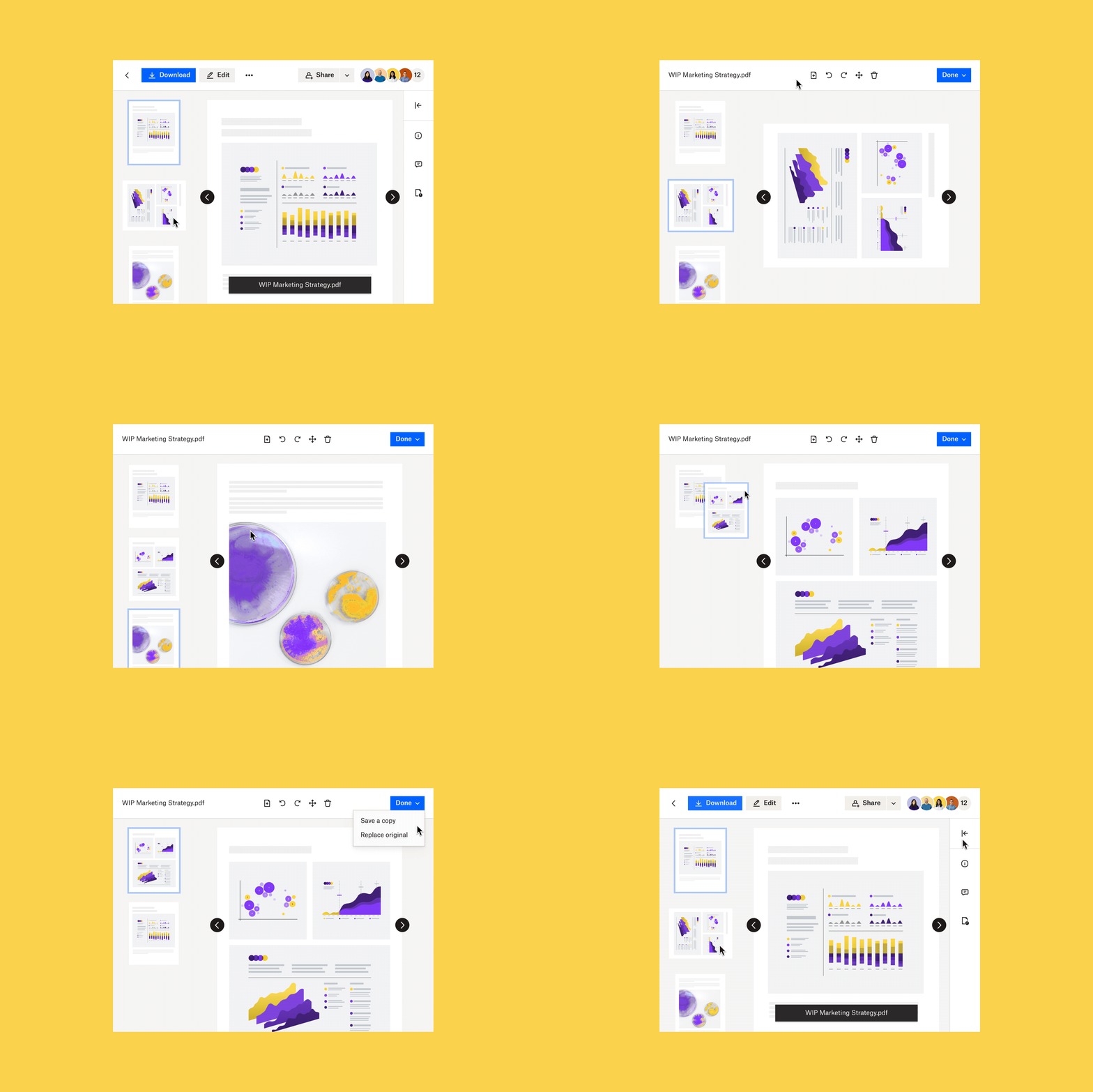
2. Reorder the pages
Once the file is uploaded:
- Open the PDF in the Dropbox built-in PDF editor.
- Drag and drop pages into the desired order.
- Preview changes to ensure the document is structured correctly.
The Dropbox drag-and-drop interface makes page rearrangement quick and precise, helping maintain a logical document flow.
3. Save and share your PDF
After reordering the pages:
- Click Save a Copy to keep the original file or Replace Original to overwrite it.
- Use the Dropbox advanced sharing options to securely distribute the updated document.
Dropbox ensures your PDF is securely stored and easy to share, whether collaborating with clients or keeping records organised.
Why reorder PDFs with Dropbox?
Reordering PDFs should be fast, secure and hassle-free. While many tools require extra downloads or come with security risks, Dropbox streamlines the process with a seamless, cloud-based experience. Designed for efficiency, Dropbox allows you to rearrange pages effortlessly while keeping your files protected.
Key advantages of using Dropbox for reordering PDF pages:
- Simple drag-and-drop functionality: Reorder pages instantly without installations or extra software
- Uninterrupted workflow: Edit, share and organise PDFs in the same platform—no switching between apps
- Reliable cloud storage: Keep your documents automatically updated and accessible across all devices
- Built-in security: Protect sensitive files with encryption, version history and password-protected sharing
Dropbox isn’t just about reordering—it’s a complete solution for managing PDFs securely and efficiently, so your documents stay structured and accessible whenever you need them.
Improving your workflow with Dropbox
Dropbox provides a complete document management system beyond just PDF reordering.
More than reordering PDFs
Dropbox offers a comprehensive PDF editing suite, allowing users to:
- Merge and split PDFs to manage documents more efficiently
- Rotate pages to fix document orientation issues
- Annotate PDFs by adding comments or highlighting important sections
These tools help keep documents professional, organised and ready for sharing.
Centralised file management
Keeping documents structured and accessible is essential for productivity. Dropbox offers a secure, cloud-based hub that not only stores and syncs files but also streamlines organisation and collaboration. It can help to centralise file management with:
- Customisable folder structures: Organise files in a way that fits your workflow, using a structured folder hierarchy to ensure everything is easy to find. Shared folders allow teams to access the latest versions instantly, reducing time spent searching for content.
- Shared team workspaces: Collaborate in real time with centralised folders that update instantly across all users. Group folders allow designated members to access, edit and share content seamlessly and set granular permissions to control who can view, edit or manage files.
- Automated file syncing and updates: Changes made to shared files sync instantly across devices, ensuring everyone stays up to date without manual version tracking.
Seamless collaboration
Dropbox simplifies team collaboration with built-in tools for real-time document sharing and editing.
- Instant file sharing: Generate shareable links with customisable access settings
- Real-time comments: Leave annotations directly in PDFs for streamlined feedback
- Integrated productivity tools: Connect with Slack, Zoom, Microsoft 365 and other platforms to manage files without disrupting your workflow
Dropbox isn’t just a storage solution—it’s a streamlined, centralised workspace that keeps files structured, secure and easy to manage across teams and devices.
Simplify your PDF tasks with Dropbox
Dropbox makes PDF reordering and file management effortless. Whether preparing client reports, managing legal documents or organising research files, Dropbox provides the tools to work smarter and faster.
Sign up for free and experience the easiest way to manage PDFs today.
Frequently asked questions
Dropbox provides a free PDF reordering tool. Upload the file, use the Reorder Pages tool and save the updated document.
Yes, the Dropbox mobile app supports PDF reordering, allowing users to rearrange pages on the go.
Yes, Dropbox allows users to overwrite the original file or save a copy to maintain both versions.


