Merge PDF files
Combine multiple files into a single PDF
Dropbox enables you to combine multiple PDF files by inserting the pages from one PDF into another. It's effortless and can be done to any file in your Dropbox account in just a few clicks—helping you to streamline your workflow and save valuable time.
Do more than merge
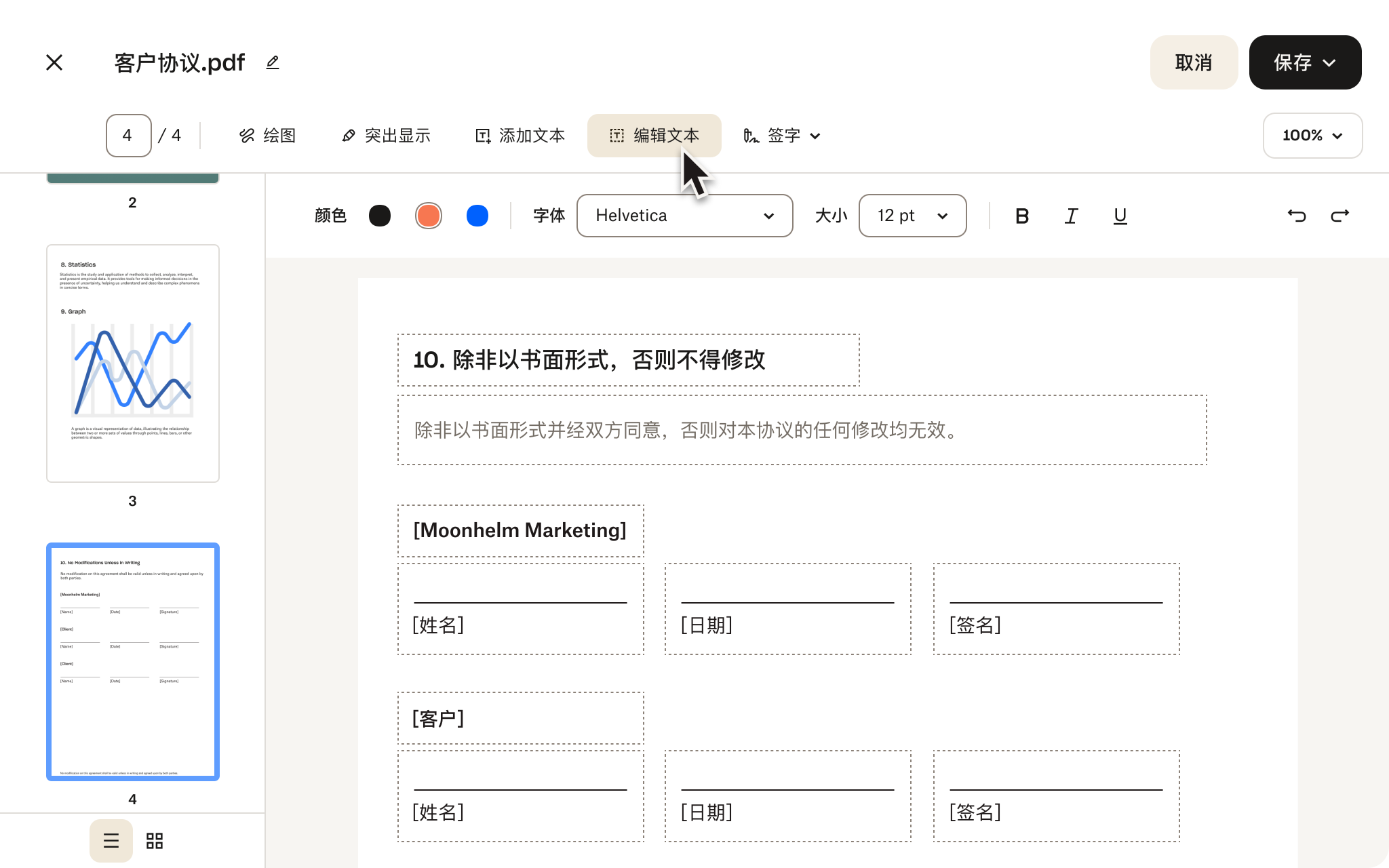
The Dropbox PDF editor allows you to merge, split, and rotate pages to polish and structure your documents exactly the way you need them.
Merging and editing PDFs can be done in the same tool, within a few clicks— with no need to export or use additional apps during the process.

Collaboration made easy
Dropbox makes it easy to share PDFs in multiple ways.
Simply copy a link to grant access to colleagues, clients, or friends in seconds. With advanced sharing controls, you can update permissions at any point after sharing.
Need extra protection on a PDF? Set expiration dates on access and password-protect PDFs stored in your Dropbox account for complete control.
Go from idea to done with Dropbox
Store and share files. Sign and send documents. Record screens and comment. All with Dropbox.
For companies
Advanced
- For 3 people or more
- Starts at 15 TB for the team
- Stay connected across all devices
- 1 year to restore deleted files
- Transfer files up to 100 GB
- Integrate with leading AI tools
- Edit PDFs and get signatures
- Brand your files to share
- Password protect files
- Get team folders for organization
- Manage team sharing
- Create groups and roles
- Tiered-admin management
- End-to-end encryption
- Advanced key management
- Compliance tracking
- Single sign-on
Frequently asked questions
To combine pages from multiple PDFs, simply click the Select file button above and select one of the PDFs that you would like to combine. You will then be redirected to the free PDF editor where clicking Insert page will allow you to combine different PDFs for free.
If you’re wondering how to attach 2 PDF files, simply open the first PDF in the editor and click Insert page to add the second. Dropbox combines the pages into one document that you can edit, save, and share.
To add files like photos to your PDF, simply convert an image to PDF—such as JPG or PNG—and then merge the PDFs by selecting Insert page with one of the PDFs open in the PDF editor. Dropbox support for image files lets you bring different source files together in one organized document.
If the files are already PDFs, use Insert page to add them to the open document. For supported image files such as JPG or PNG, convert them to PDF first, then insert the resulting pages.
Absolutely. Simply follow the steps to convert an image to PDF and then open one of the PDFs in the PDF editor and click Insert page to combine the images.
Dropbox equips you with all the tools you need to master your PDFs. You can:
- Merge, split, and rotate pages on the fly—organize your documents exactly how you want
- Add or delete pages with ease—keep only the content that matters
- Annotate, comment, and request signatures—collaborate seamlessly with colleagues and clients
- Convert PDFs to other formats—ensure maximum compatibility
- Encrypt documents—add an extra layer of security for sensitive information
Check out our free PDF editor.
Combining PDFs allows you to streamline your workflow by keeping all relevant information in one convenient file. Whether you’re consolidating reports, organizing documents, or creating a single file for sharing, merging PDFs saves time and makes it easier to manage and access your content. With Dropbox, you can effortlessly combine PDFs stored in your account in just a few clicks, ensuring a smoother and more efficient document management process.
Merging PDFs with the Dropbox free PDF editor does not reduce the quality of your files during the merging process. You’ll even be able to convert an image to PDF and maintain the quality of the image too. Find out how Dropbox can help your team collaborate easily with secure PDF sharing.