Table of contents
- Szybka odpowiedź — jakie są najlepsze narzędzia do organizowania plików kreatywnych?
- Czego zespoły kreatywne powinny szukać w narzędziu do organizacji plików?
- W jaki sposób efektywnie organizować pliki klientów?
- Jak automatycznie organizować pliki według typu lub daty?
- Jakie jest najlepsze narzędzie do zarządzania dużymi bibliotekami plików?
- Jaki jest najlepszy system organizowania udostępnianych plików?
- Jakie jest najlepsze narzędzie do kreatywnej współpracy nad plikami?
- Jak Dropbox i Dash współpracują z zespołami kreatywnymi
Gdy trudno zaufać plikom projektowym, każde przekazanie trwa dłużej. Sprawdzasz trzy foldery w poszukiwaniu najnowszego eksportu, przeglądasz czat w poszukiwaniu opinii i zastanawiasz się, czy zatwierdzony makieta to na pewno ta właściwa do wysłania.
Takie utrudnienia mogą pojawić się na każdym etapie procesu twórczego: podczas tworzenia wersji roboczych, recenzji, zatwierdzania i dostarczania wersji finalnej. Gdy pliki, opinie i wersje są rozproszone między różnymi narzędziami, drobne opóźnienia mogą przerodzić się w powielanie pracy, przeoczone komentarze lub materiały dla klienta, które wcale nie są gotowe.
Najlepsze narzędzia do organizowania plików kreatywnych powinny upraszczać cztery zadania:
- Przechowuj pliki w jednym miejscu
- Sortuj zasoby bez zbędnej pracy
- Udostępnij właściwą wersję w przejrzysty sposób
- Znajdź to, czego potrzebujesz, później
Ten przewodnik wyjaśnia, na co zwrócić uwagę przy wyborze narzędzia do organizacji plików kreatywnych — od struktury folderów i kontroli udostępniania po wyszukiwanie i zarządzanie wersjami. Pokażemy również, jak Dropbox pomaga utrzymać porządek w projektach kreatywnych w miarę rozwoju pracy z klientami, oraz jak Dropbox Dash dodaje uniwersalne wyszukiwanie obejmujące połączone aplikacje i zawartość, dzięki czemu łatwiej znaleźć pliki, odpowiedzi i kontekst projektu.

Szybka odpowiedź — jakie są najlepsze narzędzia do organizowania plików kreatywnych?
Gdy Twój zespół zarządza rosnącą kolekcją zasobów, najskuteczniejsze rozwiązania pomagają utrzymać porządek i umożliwiają szybkie znajdowanie potrzebnych plików w miarę postępu projektów. W przypadku większości zespołów kreatywnych praktyczna konfiguracja może obejmować:
- Wspólne przechowywanie w chmurze do bieżącej pracy
- Łatwa w obsłudze automatyzacja powtarzalnych porządków
- Wbudowane narzędzia do przekazywania opinii w cyklach recenzji
- Szybsze wyszukiwanie, gdy biblioteka staje się zbyt duża, aby przeglądać ją ręcznie
Dzięki Dropbox możesz organizować pliki i foldery w jednym miejscu, udostępniać pliki lub foldery z dostępem tylko do wyświetlania lub do edycji, komentować i dodawać adnotacje bezpośrednio na obsługiwanych plikach oraz przywracać wcześniejsze wersje, gdy coś się zmieni.
Gdy Twoja zawartość znajduje się również w innych aplikacjach, Dash dodaje uniwersalne wyszukiwanie w połączonych aplikacjach oraz stosy, które grupują powiązane prace według projektu, klienta lub kampanii.
Oto łatwy w obsłudze przepływ pracy, który pozwoli w pełni wykorzystać oba narzędzia:
- Korzystaj z udostępnionego przechowywania w chmurze, aby przechowywać aktywne pliki w jednym miejscu.
- Skorzystaj z automatyzacji lub reguł sortowania, aby ograniczyć ręczne porządkowanie.
- Korzystaj z komentarzy, adnotacji i historii wersji, aby powiązać recenzje z pracą.
- Korzystaj z uniwersalnego wyszukiwania i przestrzeni roboczych, jeśli Twoja biblioteka obejmuje wiele aplikacji, typów plików i zespołów.
Dobrze zorganizowany system plików staje się zasobem, na którym każdy może polegać — łatwo dostępnym i gotowym do wspierania pracy zespołu.
Czego zespoły kreatywne powinny szukać w narzędziu do organizacji plików?
Zacznij od prostego testu: czy Twój zespół znajdzie właściwy zasób, nie znając dokładnej nazwy pliku?
Praca twórcza rzadko mieści się w zwykłych dokumentach tekstowych. Pojedynczy projekt może obejmować obrazy, filmy, prezentacje, pliki PDF, pliki projektowe, eksporty, opinie i gotowe materiały. Twój system powinien umożliwiać wyszukiwanie tych plików nie tylko według nazwy, aby można było odnaleźć właściwą wersję, nawet gdy pamiętasz jedynie klienta, kampanię, format lub przybliżony opis.
Dalej, upewnij się, że struktura może rozwijać się wraz z Twoją pracą. Struktura folderów, która wydaje się przejrzysta w przypadku jednej kampanii, może stać się chaotyczna po dodaniu kolejnych klientów, współpracowników, materiałów i rund weryfikacji. Poszukaj narzędzia, które obsługuje czytelny system folderów, przejrzyste konwencje nazewnictwa oraz wystarczającą elastyczność, aby projekty pozostawały uporządkowane w miarę rozrastania się biblioteki.
Współpraca również ma znaczenie. Samo miejsce na pliki nie rozwiąże problemu, jeśli opinie, zatwierdzenia i uwagi dotyczące dostarczania znajdują się w osobnych wątkach e-mail lub wiadomościach czatu. Odpowiednie narzędzie powinno utrzymywać pliki i kontekst blisko siebie, aby zespół mógł przeglądać pracę, potwierdzać najnowszą wersję i sprawnie przeprowadzać zatwierdzenia bez konieczności odtwarzania całej historii za każdym razem.
Na koniec pomyśl nie tylko o projekcie, nad którym pracujesz obecnie. Biblioteki kreatywne stają się cenniejsze, gdy wcześniejsze prace pozostają łatwe do ponownego wykorzystania. Wybierz narzędzie, dzięki któremu pliki będą łatwe do odnalezienia nawet po wielu miesiącach, gdy zespół będzie potrzebował sięgnąć po wcześniejszy zasób, odwołać się do zatwierdzonej prezentacji lub przekazać pracę nowej osobie.
W jaki sposób efektywnie organizować pliki klientów?
Najskuteczniejszy system plików klienta to zwykle ten najłatwiejszy w obsłudze — i taki, którego zespół faktycznie będzie przestrzegał. Przejrzysta struktura folderów, taka jak ta, sprawdza się w przypadku wielu zespołów kreatywnych:
- Nazwa klienta
- Projekt lub kampania
- 01 Brief
- 02 Pliki robocze
- 03 Przegląd
- 04 Ostatecznie zatwierdzone
- 05 Archiwum
- Projekt lub kampania
Dzięki temu każdy projekt ma swoje wyraźne miejsce, a oddzielenie bieżącej pracy od zakończonej staje się łatwiejsze. Utrzymuje to również przydatność archiwum na później, ponieważ stare pliki są przechowywane według klienta i projektu, zamiast być rozproszone po niepowiązanych folderach.
To nie tylko foldery. Nazewnictwo plików też ma znaczenie. Zastosuj format, którego może się trzymać cały zespół, na przykład:
client_project_deliverable_status_YYYY-MM-DD
Taki system nazewnictwa znacznie ułatwia sortowanie i wyszukiwanie. Ogranicza to również zamieszanie związane z wersjonowaniem, ponieważ nazwa pliku informuje o jego zawartości jeszcze przed otwarciem.
Gdy struktura jest już gotowa, utrzymuj jeden folder udostępniony dla każdego aktywnego klienta lub kampanii. Przechowuj tam aktywne pliki, a następnie archiwizuj je zgodnie z harmonogramem.
Dzięki folderom udostępnionymDropbox, możesz łatwo i bezpiecznie udostępniać foldery współpracownikom lub klientom, korzystać z dostępu tylko do wyświetlania, gdy chcesz Protect oryginały, oraz kontrolować dostęp do określonych podfolderów, gdy projekt zawiera poufne materiały.
Jak automatycznie organizować pliki według typu lub daty?
Aby ograniczyć ręczne sortowanie, wykorzystaj automatyzację do powtarzalnych elementów swojego przepływu pracy. Foldery przyjęć, foldery eksportu i foldery przekazywania zasobów to dobry punkt wyjścia.
Podczas korzystania z Dropbox w przeglądarce opcje automatyzacji umożliwiają organizowanie i automatyzowanie zadań na koncie. Foldery z automatyzacją mogą pomóc:
- Sortuj pliki według kategorii
- Zastosuj reguły nazewnictwa
- Dodaj tagi tam, gdzie są dostępne
Zapewnia to bardziej spójny system bez konieczności zapamiętywania każdej reguły ręcznie przez wszystkich członków zespołu.
Dropbox oferuje również organizowanie wielu plików, które umożliwia grupowanie plików według przedziału czasowego, słowa kluczowego, aktywności plików czy inteligentnych rekomendacji przenoszenia, a także dodawanie niestandardowych filtrów, takich jak rozmiar i rozszerzenie pliku.
Zmiany można wyświetlić w podglądzie przed ich zastosowaniem oraz zdecydować się na stosowanie reguły za każdym razem, gdy do folderu zostanie dodany nowy plik. Jest to szczególnie przydatne, gdy regularnie otrzymujesz nowe eksporty, wersje robocze lub pliki przesyłane przez klientów.
Automatyzacja jest pomocna, ale nie powinna zastępować przejrzystości. Używaj jej, aby utrzymać porządek w folderach, a następnie upewnij się, że pliki nadal łatwo odnaleźć później. Właśnie wtedy uniwersalne możliwości wyszukiwania i wspólne obszary robocze zaczynają mieć większe znaczenie.
Jakie jest najlepsze narzędzie do zarządzania dużymi bibliotekami plików?
Gdy biblioteka zawiera duże zbiory obrazów, filmów, prezentacji, plików PDF i plików projektowych, samo nazywanie folderów nie wystarczy. W takim przypadku potrzebny jest system zapewniający niezawodne miejsce do przechowywania, szybkie podglądy, skuteczne wersjonowanie oraz szybszy sposób znajdowania właściwego pliku.
Dropbox został stworzony z myślą o tej codziennej warstwie pracy. Możesz:
- Trzymaj pliki i foldery uporządkowane w jednym miejscu
- Bezpiecznie udostępniaj pliki
- Współpracuj nad zawartością
- Korzystaj z integracji aplikacji bez opuszczania Dropbox
Dzięki temu masz jeden spójny system do przechowywania, przeglądania i udostępniania plików kreatywnych zamiast zbioru niepowiązanych narzędzi.
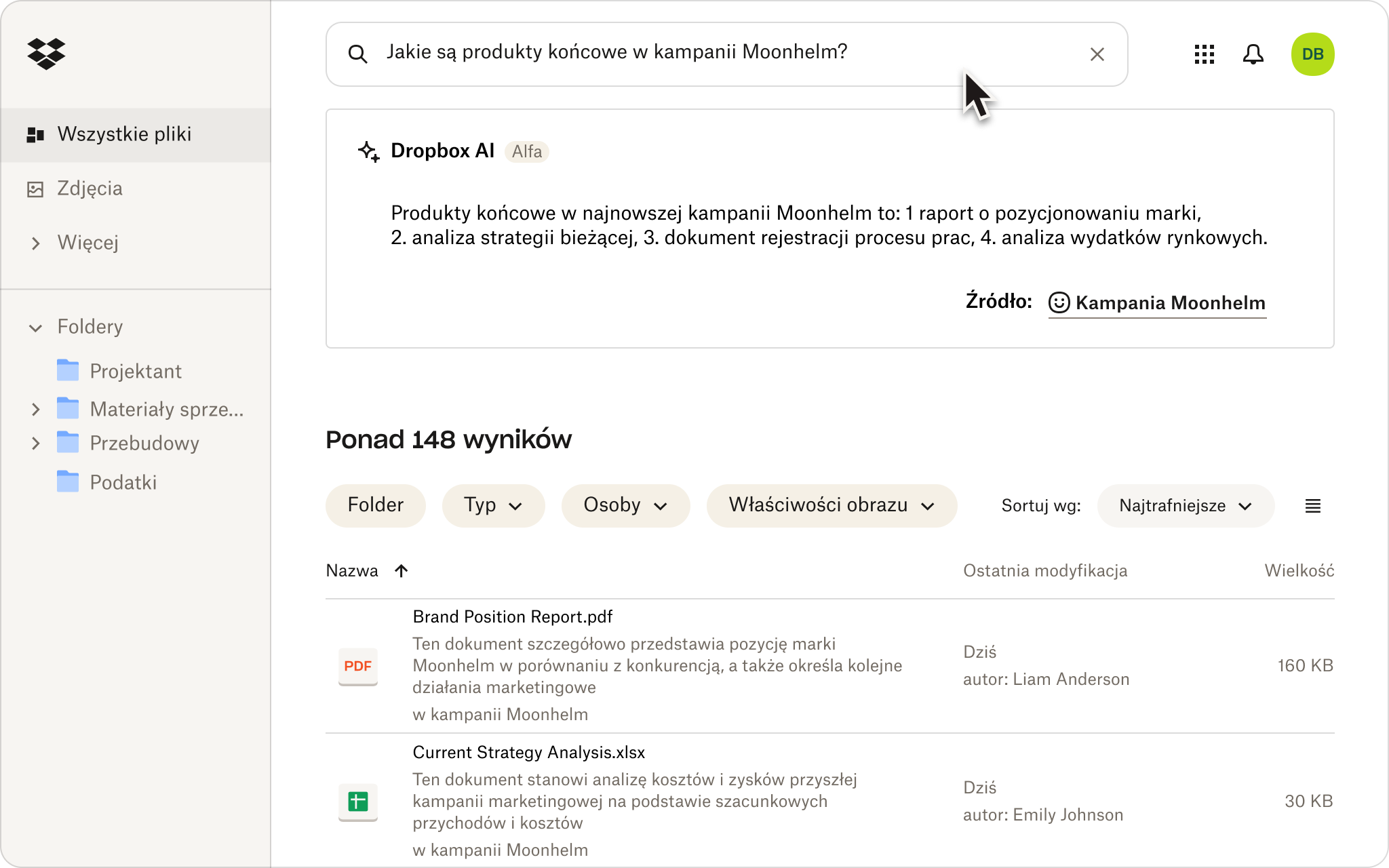
Gdy Twoje pliki są rozproszone między wieloma narzędziami, Dash staje się jeszcze bardziej przydatny. Uniwersalne wyszukiwanie Dash gromadzi zawartość z połączonych aplikacji w jednym, przeszukiwalnym centrum. Połączone aplikacje obejmują pocztę e-mail, kalendarz, pliki i wiele innych, co oznacza, że nie musisz polegać na jednej aplikacji ani drzewie folderów, aby znaleźć pliki.
W przypadku organizacji opartej na projektach kolejną warstwę dodają stosy. Stosy umożliwiają grupowanie plików, aplikacji, linków przeglądarki i innych elementów, a następnie udostępnianie takiej kolekcji osobom w Twojej organizacji lub poza nią. Korzystając z Dash Chat, możesz również podsumować stos i uzyskać odpowiedzi z konkretnych plików w nim zawartych, co jest idealne, gdy potrzebujesz przejrzystego obszaru roboczego dla jednego klienta, wdrożenia lub kampanii.
Jakie jest najlepsze narzędzie do kreatywnej współpracy nad plikami?
Najlepsze narzędzie do współpracy nad plikami kreatywnymi to takie, które utrzymuje opinie powiązane z pracą. Jeśli komentarze znajdują się w osobnym dokumencie lub są ukryte w długim wątku wiadomości, cykl recenzji staje się wolniejszy i mniej niezawodny.
Dzięki funkcjom współpracy nad zawartością w Dropbox możesz:
- Twórz i udostępnij pracę w jednym centralnym miejscu
- Uzyskaj dostęp do plików takich jak PDF-y, dokumenty Google czy pliki JPEG
- Korzystaj z integracji z narzędziami takimi jak Slack i Zoom bez opuszczania Dropbox
Dzięki temu łatwiej jest utrzymać plik, dyskusję i kolejny krok blisko siebie.
Adnotacje są szczególnie przydatne, gdy recenzenci muszą wskazać konkretny fragment pracy. W Dropbox możesz dodawać komentarze do pliku, obrazu lub podglądu tekstu, w tym plików programów Excel, Photoshop i Sketch, nawet jeśli nie masz oryginalnego oprogramowania. Dzięki temu współpraca jest łatwiejsza dla klientów i partnerów, którzy chcą przekazać precyzyjne opinie bez konieczności pobierania dodatkowych aplikacji.
Historia wersji jest również ważna podczas współpracy. Gdy ktoś edytuje niewłaściwy plik lub gdy ostateczna wersja zostanie nadpisana, potrzebujesz sposobu na Wstecz. Odzyskiwanie plików i historia wersji w Dropbox umożliwiają przywracanie i odzyskiwanie wcześniejszej pracy zamiast zaczynania od nowa.
Jak Dropbox i Dash współpracują z zespołami kreatywnymi
Jeśli zamiast rozwiązań tymczasowych potrzebujesz jednego systemu, zacznij od Dropbox jako miejsca przechowywania plików, zachowaj porządek i przejdź przez proces przeglądania. Następnie dodaj Dash, gdy większym wyzwaniem stanie się znalezienie właściwego pliku w różnych formatach, folderach i połączonych aplikacjach.
Taka konfiguracja sprawdza się przy zarządzaniu plikami klientów, zasobami kreatywnymi i folderami udostępnionymi w różnych narzędziach. Chcesz uporządkować pliki kreatywne bez spowalniania swojego procesu? Wypróbuj Dropbox już dziś, a jeśli Twoja biblioteka rozrasta się w różnych aplikacjach i formatach, poznaj uniwersalne wyszukiwanie Dash.
Często zadawane pytania
Nie zawsze potrzebujesz systemu zarządzania zasobami cyfrowymi (DAM). Jeśli potrzebne jest przede wszystkim pojemne miejsce, struktura folderów, udostępnianie, opinie oraz szybsze wyszukiwanie, konfiguracja z Dropbox i Dash może obsłużyć wiele codziennych zadań kreatywnych. Pełne rozwiązanie DAM zwykle sprawdza się lepiej, gdy potrzebne jest bardziej zaawansowane zarządzanie metadanymi, ściślejsze administrowanie biblioteką marki lub bardziej formalna kontrola zasobów.
Tak. Foldery udostępnione Dropbox obsługują dostęp tylko do wyświetlania, uprawnienia do edycji oraz zaawansowane opcje udostępniania, takie jak ochrona hasłem lub wygasanie łączy w wybranych taryfach. Dzięki temu łatwiej jest udostępniać pracę klientom, jednocześnie chroniąc oryginalne pliki.
Tak. Funkcja adnotacji w Dropbox pozwala dodawać komentarze w podglądach obsługiwanych plików, w tym plików programów Excel, Photoshop i Sketch, nawet jeśli nie masz oprogramowania użytego do ich utworzenia.
Dodaj Dash, gdy Twój zespół poświęca więcej czasu na wyszukiwanie niż na tworzenie. Wyszukiwanie uniwersalne Dash jest przydatne, gdy zawartość jest rozproszona pomiędzy połączonymi aplikacjami, typami plików i zespołami, a Stosy pomagają, gdy chcesz mieć bardziej przejrzysty obszar roboczy dla jednego projektu, klienta lub kampanii.


