Table of contents
- Common challenges of remote file sharing
- How to share files with your team while working from home
- Why Dropbox is an effective way to share documents
- Comparing alternatives for file sharing
- Best practices for sharing documents with your team
- Why Dropbox is an excellent tool for remote file sharing
- Use Dropbox to share files with your team while working from home
Secure and efficient file sharing is essential for remote teams to maintain productivity and collaboration. However, managing file size, security and version control often poses challenges that impact workflows. Choosing the right tools and strategies can simplify these processes, ensuring smoother remote work experiences.
This article explores the best ways to share documents with a team, offering practical solutions and best practices for secure, efficient file sharing in remote work environments.
Discover how Dropbox makes remote file sharing easy with tools designed for seamless collaboration, enhanced security and streamlined workflows—no matter where you work.
Common challenges of remote file sharing
Remote work has become the standard for many organisations, with a McKinsey study revealing that 87% of employees engage in some form of remote work. On average, these employees spend three days a week working from home. While this shift offers flexibility, it also introduces several challenges that can hinder productivity and collaboration such as:
- Delayed deadlines: co-ordinating across time zones can lead to delays when projects require team collaboration
- File size limitations: teams working with large files, such as design assets, often struggle to manage and share them efficiently
- Security risks: remote environments introduce vulnerabilities, including unauthorised access and data breaches
- Collaboration gaps: teams need tools that allow real-time feedback, version tracking and seamless access to shared files
These challenges can disrupt workflows and productivity, underscoring the need for a secure, efficient file-sharing solution.

Comparing alternatives for file sharing
Dropbox is the ideal way to share files with your team, however, there might be some situations where you need to opt for an alternative – like a client needing you to use their current solution.
Two of the most common alternative platforms you might encounter are Microsoft OneDrive and Google Drive
Sharing files with Microsoft OneDrive
OneDrive is Microsoft’s offering in the cloud storage space. You’ll generally come across it when working with businesses that have invested in Microsoft Teams, Office 365 and SharePoint as their company’s digital workflow solution.
- Integration: OneDrive integrates well with Microsoft Teams and Office 365
- Limitations: file uploads are capped at 250 GB and fewer file types are supported compared to Dropbox
Of course, there’s no reason why businesses that love Microsoft Office can’t have the best of both worlds—as Dropbox works seamlessly with Microsoft 365 apps.
Keen to find out more? See Dropbox vs OneDrive for a full comparison.
Sharing files with Google Drive
Drive is Google’s cloud storage platform, which – much like Microsoft’s equivalent – you’ll typically encounter when collaborating with clients that use Google Workspace.
Again, it’s possible to share files stored in Google Drive with your team, but this comes with some limitations:
- Integration: Drive integrates with Google Workspace tools like Docs and Sheets
- Limitations: uploads are limited to 750 GB per day and version history duration and number of versions retained varies depending on the file type and your Google Workspace settings
- Incremental backup: are multiple collaborators making small, local edits to large files? With Google Drive, you need to sync the entire file each time it’s revised, whereas Dropbox only needs to sync the data that has changed—much faster!
See Dropbox vs. Google Drive for a complete side-by-side breakdown.
While these platforms have merit, Dropbox stands out for its larger upload limits, extensive file type support and advanced collaboration features, such as frame-accurate commenting for rich media files.
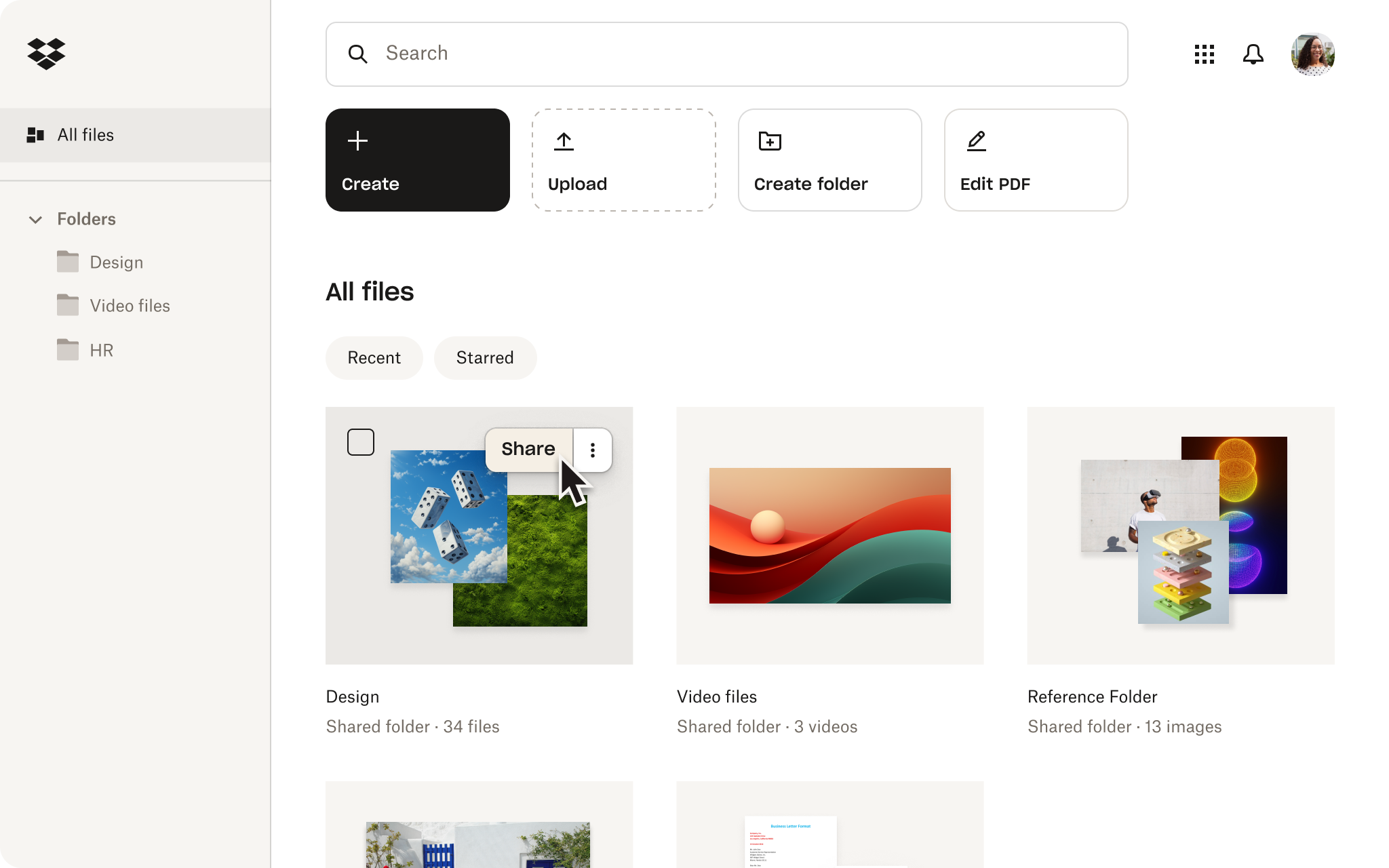
Best practices for sharing documents with your team
Whatever tool you pick for sharing, the best method to share files with colleagues is in a way that makes sense in terms of your company’s security, collaboration and organisation needs.
Keep the following tips and best practices in mind for success when working with files remotely.
Security
Teams can share files securely by using cloud-based sharing with controlled access instead of email attachments. Some general best practices for security when sharing or using files remotely include:
- Check if email addresses are from your company domain before sharing.
- Train team members to identify scams, phishing and other risks.
- Make sure your cloud storage service includes state-of-the-art security.
- Use a secure password manager.
- Always back up your work files, you can do it automatically with Dropbox Backup.
With Dropbox, you can set clear permissions for team members, limit access to only those who need it and protect shared files with features like password-protected links, expiry dates and activity tracking—helping keep internal collaboration secure and compliant.
Collaboration and sharing
A few tips for collaborating on files when working from home include:
- Avoid using email for sharing files, use shareable links from your cloud storage instead.
- Set permissions to control access, so the right people have access to the files they need.
- Create company policies to raise awareness of data protection and the risks of sharing files.
- Use multi-factor authentication to prevent hacks and data leaks.
- When using Dropbox, create time-sensitive shared links.
Organisation
For better organisation of your files while working remotely, try the following:
- Separate your files into categories.
- Structure folders logically, with folders for different departments, projects or types of work.
- Use consistent naming conventions, including things like dates, project owners or versions.
- When using Dropbox, organise your files using tags.
Dropbox has helped many organisations transition to a remote working style.
Why Dropbox is an excellent tool for remote file sharing
Dropbox offers an effective and secure solution for sharing documents with your team. It combines robust security features, cross-platform compatibility and tools for seamless collaboration, making it suitable for remote teams of all sizes.
By choosing Dropbox, teams can overcome common file-sharing challenges while maintaining productivity and ensuring data security.
"Using Dropbox and Dropbox Sign allows us manage our files and our documents in one place and that keeps us more organised and more efficient in our everyday processes."
Matt SeigelPresident, Collier SimonFrequently asked questions
Yes. With Dropbox, collaborators can work on files offline and automatically sync changes once they’re back online. Any updates made offline are securely uploaded and shared with the latest version when the connection is restored, helping teams stay productive even without Internet access.
Cloud file collaboration can be highly secure when the right protections are in place. Dropbox uses advanced encryption, granular access controls and activity monitoring to help keep shared files protected. Teams can manage who can view, edit or download files, add passwords and expiry dates to shared links and track file activity—reducing the risk of unauthorised access while collaborating remotely.
Yes. Dropbox lets you set access permissions for stored files and folders, so you control who can view, edit or download your content. You can update permissions at any time, use view-only access for sensitive files and add extra safeguards like password protection or expiry dates on shared links to maintain control while collaborating.
Professional services firms share sensitive client deliverables securely by using cloud tools with strong access controls and monitoring. With Dropbox, teams can share files using permission-based links, set view-only or edit access, add passwords and expiry dates and track file activity—so client work stays protected while enabling fast, professional delivery.
To share legal documents securely online, use a cloud platform that offers encryption, strict access controls and activity tracking. Dropbox allows you to share legal files with view-only or edit permissions, protect links with passwords and expiry dates and monitor access—helping ensure contracts and sensitive documents are shared safely and only with the intended recipients.


